Powered by Blogger.
  • Home
  • About
  • Contact Us
  • Disclaimer
  • Software
    • Windows
    • App Inventor
  • Tips and Tricks
  • Games
  • Terms and Conditions
  • Policies
    • Privacy Policy
    • Cookie Policy
facebook twitter instagram pinterest bloglovin Email

Tech Encyclopedia

Q--> WHAT IS DirectX DIAGNOSTIC TOOL?

--->  DirectX Diagnostic Tool  : - THIS IS THE TOOL THAT REPORTS DETAILED INFORMATION ABOUT  THE DirectX COMPONENTS AND DRIVERS INSTALLED ON YOUR SYSTEM.


Q--> HOW TO OPEN DirectX DIAGNOSTIC TOOL?
---> IT IS A VERY EASY TASK.
DIRECTX DIAGNOSTIC TOOL IS ALSO CALLED DXDIAG (SHORTFORM)


FOLLOW THESE SIMPLE STEPS TO OPEN IT AND REFER TO THE IMAGES FOR MORE EXPLANATION.


STEP 1---> OPEN THE SEARCH BOX IN YOUR WINDOWS.

STEP 2---> TYPE DXDIAG AND SELECT THE OPTION SHOWN


STEP 3---> THE DXDIAG WINDOW WILL OPEN.


STEP 4---> FOLLOW THE INFORMATION FOR PROCEEDING AS GIVEN AND SHOWN.


THANKS


Share
Tweet
Pin
Share
8 Comments

When we want to download anything we like we search it and find that it is on a site that requires Account i.e. 4SHARED and many other.

So, today I gonna show you how to download form 4SHARED with few absolutely simple steps:-


LETS START


STEP 1 : GO TO THE DOWNLOAD PAGE AND COPY THE LINK ADDRESS.
REFER TO THE IMAGE FOR MORE EXPLANATION


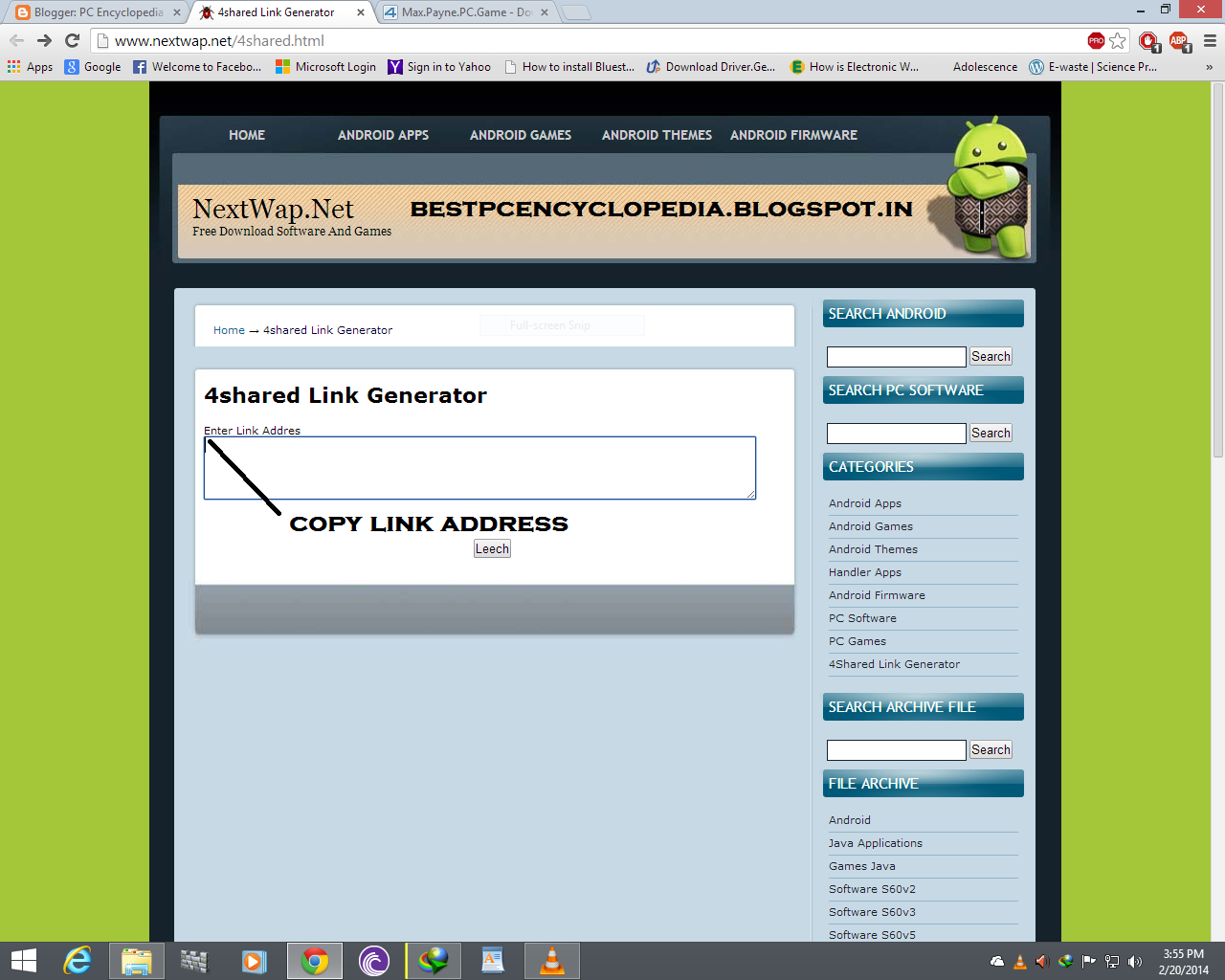
STEP 2 : GO TO THIS LINK --  4SHARED LINK GENERATOR

STEP 3 : COPY THE LINK ADDRESS AS SHOWN IN THE PIC.

STEP 4 : CLICK ON LEECH AND A NEW WINDOW WILL OPEN SHOWIND DIRECT DOWNLOAD LINK, CLICK ON IT AND ENJOY.


For Full Understanding watch my VIDEO.


THANKS 
FOR MORE TIPS AND TRICKS VISIT OUR TIPS AND TRICKS SECTION AT BESTPCENCYCLOPEDIA.BLOGSPOT.IN


Share
Tweet
Pin
Share
2 Comments

Some of us do not have graphic cards in our PC but, we want to play games that other play or that we like but we are unable due to the graphics error occuring while starting the game due to no Graphics Card.
So, today I gonna show you all how to run games on PC without Graphic Cards.


But, remember this is just an alternate thing. The frame rate of the game may decrease and the kind of experience you will get with graphics card, will not be available without graphics card.

So, Let's start.
Refer to the steps and Images for more explanation.

Step 1: Download 3d analyze from the link given below:

3d Analyze ------    Download 3d Analyze


Step 2 : Install/Extract 3d analyze.

Step 3 : Note the error occuring while opening/starting the game / .exe application.
Step 4 : Choose the options in 3d analyze for which the error is being shown.

For example --------  If I want to run NFS Most Wanted , I have to select the Speed.exe file from SELECT, Enable all H/W limits and change the device id to Ati Radeon 9800 pro in Vendor id And Device ID BOX.


Step 5 : After Selecting the options required, Click on Run button and enjoy.....!!  :)

FOR FULL EXPLANATION WATCH MY VIDEO.


THANKS


Share
Tweet
Pin
Share
3 Comments
Now Days, Downloading Torrent File through IDM (Any other Download Manager) is going very popular and Even Everyone using these Methods rather than using torrent Client (Utorrent, Bittorrent...etc). 

So here we are posting the Trick by which you can download Torrent files from IDM upto 8gb file.

So, today I will show you how to download torrent files directly with your download manager.

Just follow these steps and refer to the pics for explanation.

Step 1 – First Download and Install IDM (Internet download Manager) or any other download manager.

Step 2 – Now Copy Any Torrent link Address or Download the Torrent File.


Step 3 – Now Visit site zbigz.com .
Step 4 – Paste the Link Address or Upload the Torrent File.
Step 5 – Now Click on Go .

Step 6 – Select free version of download.

Step 7 – Wait till your file become ready to download, after waiting download your file as shown in screenshot.

Its done.


THANKS


Share
Tweet
Pin
Share
No Comments


Picture of Create your own run command by easy step
Here i will show How you can create your own run command in windows OS. Actually this feature in windows is great which is useful to open your application window instantly. So Now you can also create your command to open any application by entering command in RUN. 

Lets Start.

Step 1: Creating Sortcut


Picture of Creating Sortcut
Here you have to create shortcut of your application.

Right click on desktop click on new then click on shortcut
Then you will see one window.
Here you have to paste full path of your application file (it should be .exe file or .lnk file ro may be other shortcut). You can also browse that file by the browse button.

Step 2: Choose your application


Picture of Choose your application
Here i am creating shortcut of DOSBox-0.74
You can paste your application path which you want to run using Run command.
after selecting path click on next button,

Step 3: Set Run command


Picture of Set Run command
Now This is important to set run command.
Here you have to type command name which you want to set.
Remember you can open your application using this command in run.
Here i am setting my command name with "dosbox" So i am able to open it using this command name in run.
after typing name of command click on finish.

Step 4: Finishing Step


Picture of Finishing Step
Finally you done all thing,
You will see one shortcut on desktop
Cut it and paste it at the following path
                  C:\Windows
Thats Done.
Now open tun and type your command name, you can browse your application.
Thanks for reading.
Share
Tweet
Pin
Share
No Comments

Windows 8

Windows 8 is the 3rd latest version of Microsoft's operating system for PCs and tablets. Many users may be confused by this completely re-designed version of Windows, but our tutorial will help guide learners through the many changes Microsoft has made.
Microsoft released Windows 8.1 in October 2013. It is a free update for anyone who already has Windows 8. Check out our frequently asked questions about Windows 8.1 to learn more.


Getting Started with Windows 8

In this lesson, we'll show you how to navigate Windows 8, use the Charms bar, and work with apps. We'll also show you where to find features that were previously found in the Start menu.Windows 8 can be confusing at first, since the interface has changed so much. You'll need to know how to navigate the Start screen as well as the Desktop. Although the Desktop looks very similar to previous versions of Windows, it has one major change: The Start menu has been removed.


To Sign In to Windows 8:

When you're setting up Windows 8, it will require you to create an account name and password that you will use to sign in. You can also create additional accounts, and you'll have the option of associating each one with aMicrosoft account.
Click anywhere on the lock screen to unlock the computer.
  1. Screenshot of Windows 8Clicking the lock screen
  2. Your user account name and picture will appear. Type your password and then press Enter to sign in. Alternatively, you can press the back arrow to select a different user.
    Screenshot of Windows 8The sign-in screen
  3. The Start screen will appear.
    Screenshot of Windows 8The Start screen


Using the Search Feature

Once you've used Windows 8 for a while, you'll start to have more and more files, such as music, photos, and documents. It may sometimes be difficult to find the exact file that you want. You may even have trouble finding a specific app, since Windows 8 has moved everything around. Luckily, there is a built-in search feature, which can help you find files, apps, or almost anything else on your computer.

To Search From the Start Screen:

  • From the Start screen, type what you're looking for. Your search results will instantly appear below the search bar. A list of suggested web searches will appear below the results.
    Screenshot of Windows 8Searching for a file

Using Different Search Options

You can select different search options to help find specific files, settings, and more. Just click the drop-down arrow above the search box and then select the desired option:
  • Select Settings or Files to search for a setting or file.
  • Select Web images or Web videos to search the web.
    Screenshot of Windows 8Setting search options

Searching From the Desktop

If you're on the Desktop, you will first need to press the Windows key to switch to the Start screen, and then type what you're looking for.
Photo of keyboardWindows key

Searching on a Tablet


If you're using a tablet without an attached keyboard, you can search by swiping in from the right, and then selecting the Search charm. You can then type what you're looking for.
Screenshot of Windows 8The Search charm


Personalizing Your Start Screen
Screenshot of Windows 8Personalizing the Start screen
You'll probably spend a lot of time on your Start screen, so you may want to personalize it so that it suits your taste. In this lesson, we'll show you several different ways to personalize it, including changing the background image and color,rearranging apps, pinning apps, and creating app groups.

To Change Your Start Screen Background:

  1. Hover the mouse in the lower-right corner to open the Charms bar, and then select the Settings charm.
    Screenshot of Windows 8Selecting the Settings charm
  2. Click Personalize.
    Screenshot of Windows 8Clicking Personalize
  3. Select the desired background image and color scheme.
    Screenshot of Windows 8Changing the Start screen background


To Change Your Lock Screen Picture:

Hover the mouse in the lower-right corner to open the Charms bar, and then select the Settings charm.
Click Change PC settings.
  1. Screenshot of Windows 8Clicking Change PC settings
  2. Select Lock screen near the top of the screen.
    Screenshot of Windows 8Clicking Lock Screen
  3. Select the desired picture from the list of thumbnails. Alternatively, you can click Browse to select one of your own pictures. 
    Screenshot of Windows 8Selecting a lock screen picture
The lock screen will appear whenever your computer is locked, which happens automatically after a few minutes of inactivity. You can also lock your computer by clicking your account name and selecting Lock.
Screenshot of Windows 8Locking the computer

To Change Your Account Picture:

  1. Hover the mouse in the lower-right corner to open the Charms bar, and then select the Settings charm.
  2. Click Change PC settings and then select Account picture.
  3. Click Browse.
    Screenshot of Windows 8Changing the account picture
  4. A list of folders will appear. Select the desired photo on your computer, or click the drop-down arrow at the top of the screen to select a different location. In our example, we'll add a photo from our SkyDrive.
    Screenshot of Windows 8Navigating to the desired folder
  5. When you have selected a photo, click Choose image.
    Screenshot of Windows 8Selecting an image
If your computer or tablet has a built-in camera, you can click Camera to take a picture of yourself.
Screenshot of Windows 8Clicking the Camera button
Share
Tweet
Pin
Share
No Comments
Older Posts

Google Analytics

Subscribe To

Posts
Atom
Posts
All Comments
Atom
All Comments

Social Media Widget

Wikipedia

Search results

Total Pageviews

Categories

  • Games
  • Software
  • Tips and Tricks
  • Wallpapers
  • Windows

Followers

Created with by ThemeXpose | Distributed by Blogger Templates